
Voice Mail PIN Reset
To complete a Voicemail PIN reset from the phone, as long as you know the current Voicemail PIN:
- 1. Press the messages button
- 2. Enter Current PIN
- 3. Press these numbers in succession: 4, 3, 1
- 4. Follow the prompts: the pin must be at least 6 digits long. enter your new PIN followed by #, for help press 0.
- 5. Enter your new PIN again to confirm it, then press #.
To complete a PIN reset on a subscriber’s voicemail:
Sign in to Self Service Admin Tool. For access credentials submit a request
- 1. Drill down to site, jump to Subscriber Management >> Voicemail, next filter 11 digit Alias and Apply
- 2. To do a Name change, (skip to step 3 if only a PIN reset is required) Select user, Go to CUC Account tab to enter the first and last name desired and Save
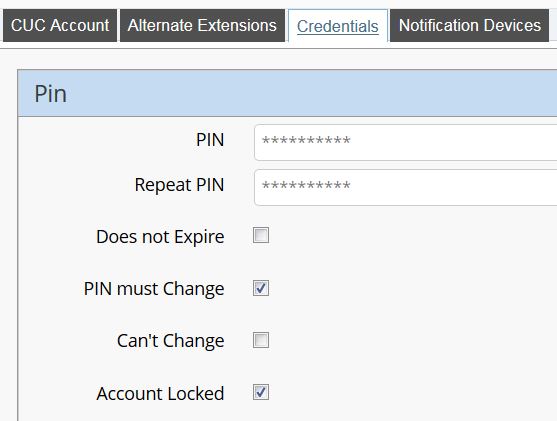
- 3. Select user, go to Credentials tab to check Account Locked and next enter 6 digit PIN, Repeat PIN and Save (Entering a duplicate PIN results in a Fail Repeat Credentials prohibited by credential policy)
- 4. Select user, go to Credentials tab, uncheck Account Locked and Save, PIN reset done
NOTE: Go to Credentials tab, when you see PIN must Change checked, this ensures that the user must change at next sign-in, this means Set for Self-enrollment at Next Sign-In
To complete a PIN reset on a subscriber's voicemail:
Sign into Self Service Admin Password Reset Only Tool. For access credentials submit a request
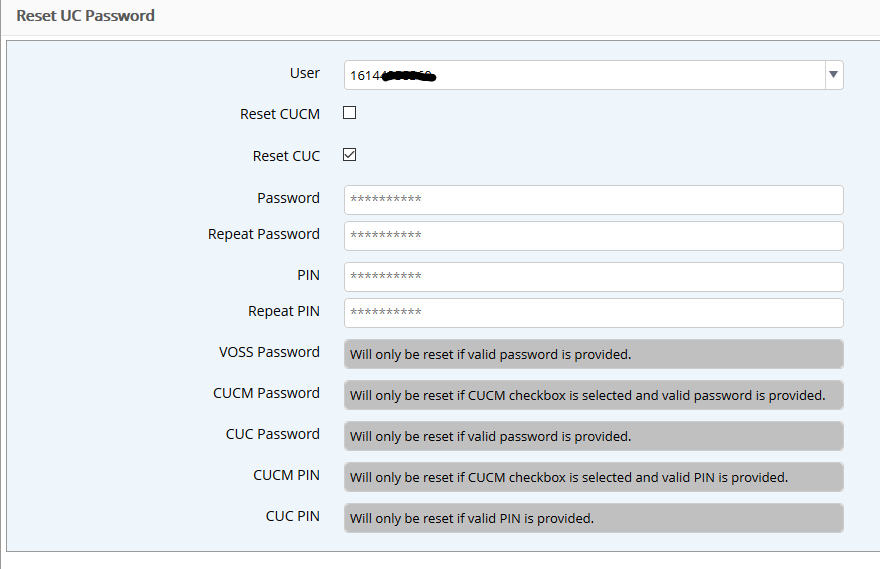
- 1. Go to Subscriber Management and select Reset UC Password.
- 2. Enter 11 digit phone number in the User field and click on that user.
- 3. Put a check mark in Reset CUC
- 4. Type in new PIN and Repeat PIN.
- 5. Click Save in Upper right hand corner.
Comments
0 comments
Please sign in to leave a comment.