
Your Cisco VoIP desk phone has many features. Some are configured for you when your phone is deployed; other features can be set up, managed, and used from the phone itself; and some advanced features can be accessed from an online web portal.
A variety of handsets, including desk, wireless, softphone and conference phones, are available at a low annual fee through an equipment purchase or lease program (including maintenance) with CBTS, providing departments with the flexibility to select the combination of devices that best meets their business needs.
The documents and interactive tutorials linked below contain both getting started information as well as detailed information for those who want to learn how to use advanced features.

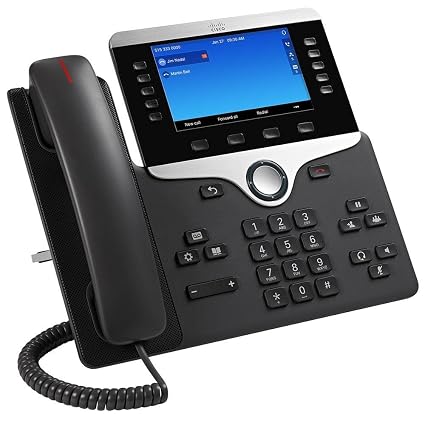
Model 8961 shown.
| 1 | Phone screen | Includes directory number, call information (e.g., caller ID, icons for active call or call on hold), and available softkeys. |
| 2 | Session buttons | Each represents a call session and takes the default action for that session — e.g., pressing the session button for a ringing call answers the call, while pressing the session button or a held call resumes the call. |
| 3 | Softkey buttons | Allows you to access the softkey options displayed on your phone screen |
| 4 | Back button | Returns to the previous screen or menu. |
| 5 | Release button | Ends a connected call or session. |
| 6 | Navigation pad and Select button | The four-way Navigation pad allows you to scroll through menus, highlight items, and move within a text input field. The Select button (center of the Navigation pad) allows you to select a highlighted item. |
| 7 | Conference button | Creates a conference call. |
| 8 | Hold button | Places a connected call on hold. |
| 9 | Transfer button | Transfers a call. |
| 10 | Keypad | Allows you to dial phone numbers, enter letters, and choose menu items (by entering the item number). |
| 11 | Speakerphone button | If enabled, selects the speakerphone as the default audio path and initiates a new call, picks up an incoming call, or ends a call. During a call, the button is lit green. |
| 12 | Mute button | Toggles the microphone on or off during a call. When the microphone is muted, the button is lit red. |
| 13 | Headset button | Selects the wired headset as the default audio path and initiates a new call, picks up an incoming call, or ends a call. During a call, the button is lit green. |
| 14 | Volume button | Controls the handset, headset, and speakerphone volume (off-hook) and the ringer volume (on-hook). Silences the ringer on the phone if an incoming call is ringing. |
| 15 | Messages button | Auto-dials your voicemail system. |
| 16 | Applications button | Opens the Applications menu, giving you access to applications such as call history, preferences, and phone information. |
| 17 | Contacts button | Opens the Contacts menu, giving you access to personal directory, corporate directory, and call history. |
| 18 | Phone display | Phone display that can be positioned to your preferred viewing angle. |
| 19 | Programmable feature buttons | Correspond to phone lines, speed dials, and calling features. Pressing a button for a phone line displays the active calls for that line. |
| 20 | Handset with light strip | The light strip lights up to indicate a ringing call (flashing red) or a new voice message (steady red). |

For more information on how to use the Conference Station 8831, as well as a description of its features and functions, see attached pdf
|
Desk Phone: Model 8945 |
||
Desk Phone: Model 8961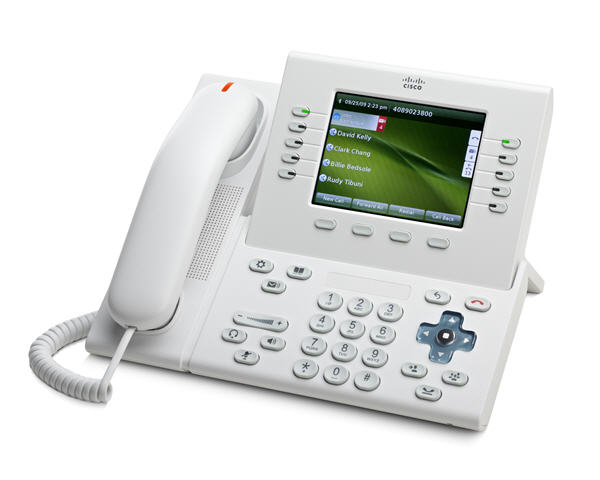 |
||
Desk Phone: Model 9951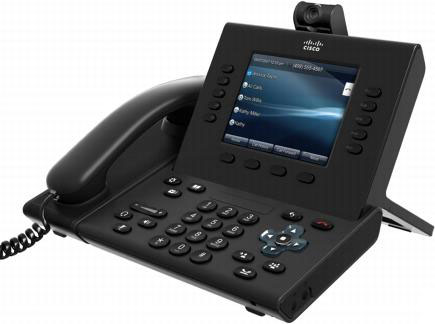 |
||
Desk Phone: Model 7845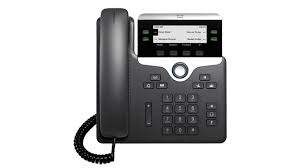 |
||
Wireless Phone: Model 7925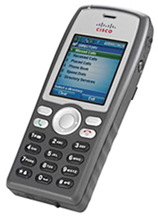 |
||
|
Desk Phone: Model 8841 |
||
Unified IP Color Key Expanson Module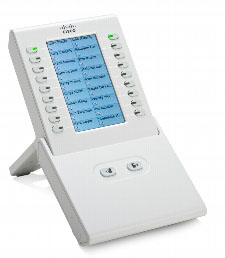 |

|
Conference Phone: Model 8832 |
|
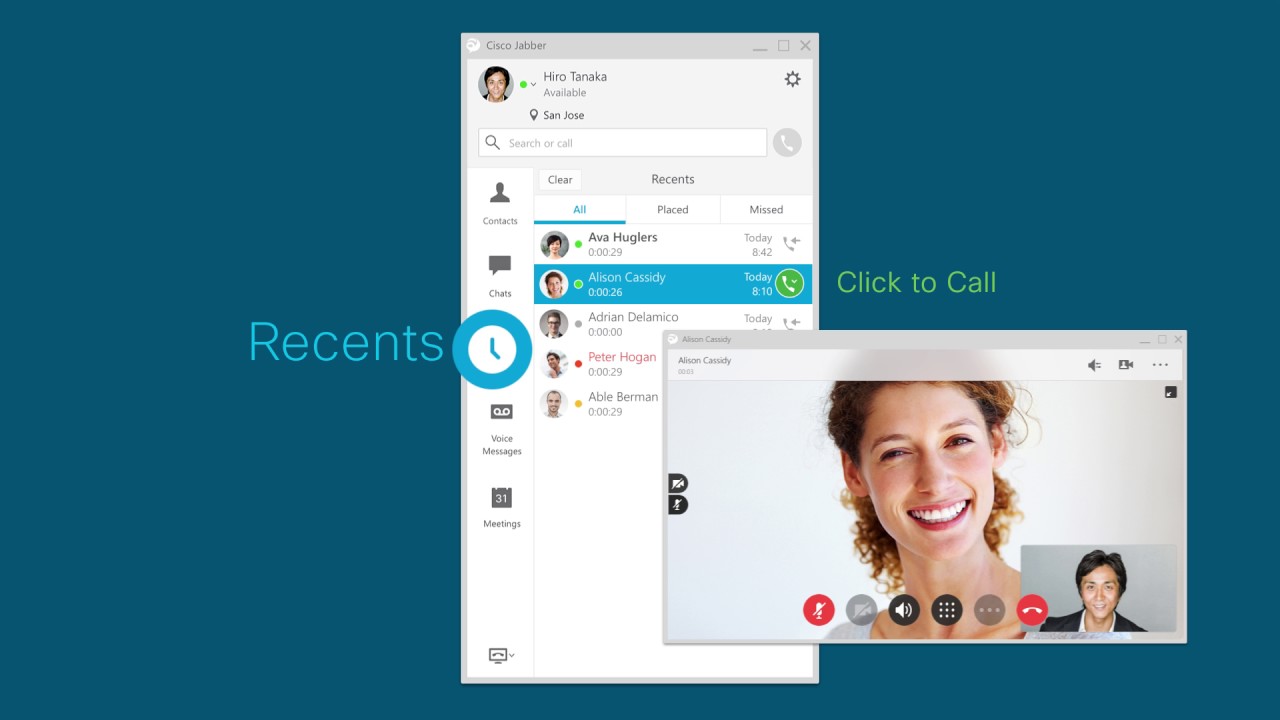
Jabber Soft Phone |
TIP: When using the external microphone kit on the 7937; ensure cables are connected correctly on both ends, so the pins must be oriented the same way.
related items:
Video Tour & Helplets
Comments
0 comments
Please sign in to leave a comment.