
VeraSmart Open Call Detail Records and Archive Database
VeraSmart is Call Accounting Software that collects call detail record (CDR) information from your phone system to deliver an in depth view of usage data for reporting and billing verification, such as:
Including inbound and outbound activity
Extensions used
Numbers dialed
Length, date, time, and costs of the calls.
In addition, it features an intuitive, customizable interface for tracking and reviewing all call activity and flexible reporting
To log in Click on VeraSmart
- Enter Login ID and Password and click Login
- Simple search by going to Call Accounting Tab > Reports> Call Search > Call Search
- 3 months of records can be made available on a search
- Simple search 2, by going to Call Accounting Tab > Call Detail > View Call Records
Schedule a report
- Login ID and Password and click Login
- Save a search by going to Call Accounting Tab > Reports> Call Search > Call Search and be sure to give the report a name and next
- Click Save drop down and Select Save with Schedule
- Enter Schedule with next run date/time
- E-Mail, enter e-mail address, Send as: Link, custom message, click OK
For a search against the Archive Database
**Please Note**: You will need to submit a ticket into the IncidentsNGTS@cbts.com email to request loading archives for the chosen time period.
- Call Accounting Tab > Reports> Call Search > Call Search
- Go to More Actions > Change to report against archive database (The date range of the archive will display below the "Call Search" header)
- Change call direction and make your selection
- Customize dates to the month(s) within the given period
OTHER CALL SEARCHES:
Searching for Auto Attendant Calls
- Go to Call Accounting > Reports > Call Search > Call Search
- Select Date Range, choose "All" for Call Direction
- Type in 11 digit Auto Attendant number in the Dialed Digits field
- Click Run (or click dropdown arrow next to Run, and choose your preferred method)
- **NOTE** - When looking at the report, the "Tandem CLI" column will display what the calling number is vs. where the calling number normally shows in the "Reported Dialed/CLI Number" field
See screenshot below:

Advanced Option:
Run a separate search in the same time period and compare the data to analyze and gain more insight into what option is pressed by callers
- Go to Call Accounting > Reports > Call Search > Call Search
- Select same Date Range, choose "All" for Call Direction
- Compare the internal phone number (separate report) and the Auto Attendant option dialed (report above) *Note: please refer to the AA options*
Searching for Hunt Group Calls
- Go to Call Accounting > Reports > Hunt Group/DNIS Filtered
- Select Date Range
- Type in 11 digit Hunt Group number in the Hunt Group/DNIS field
- Click Run (or click dropdown arrow next to Run, and choose your preferred method)
- **NOTE** - When you run the report, the first screen that appears shows a graph, with some overall call statistics. To drill down into the individual call records, click on the link under the "Hunt Group/DNIS" field. The screen will load to show the individual call records.
See screenshot below:
Search Criteria Window

Report Overview Window
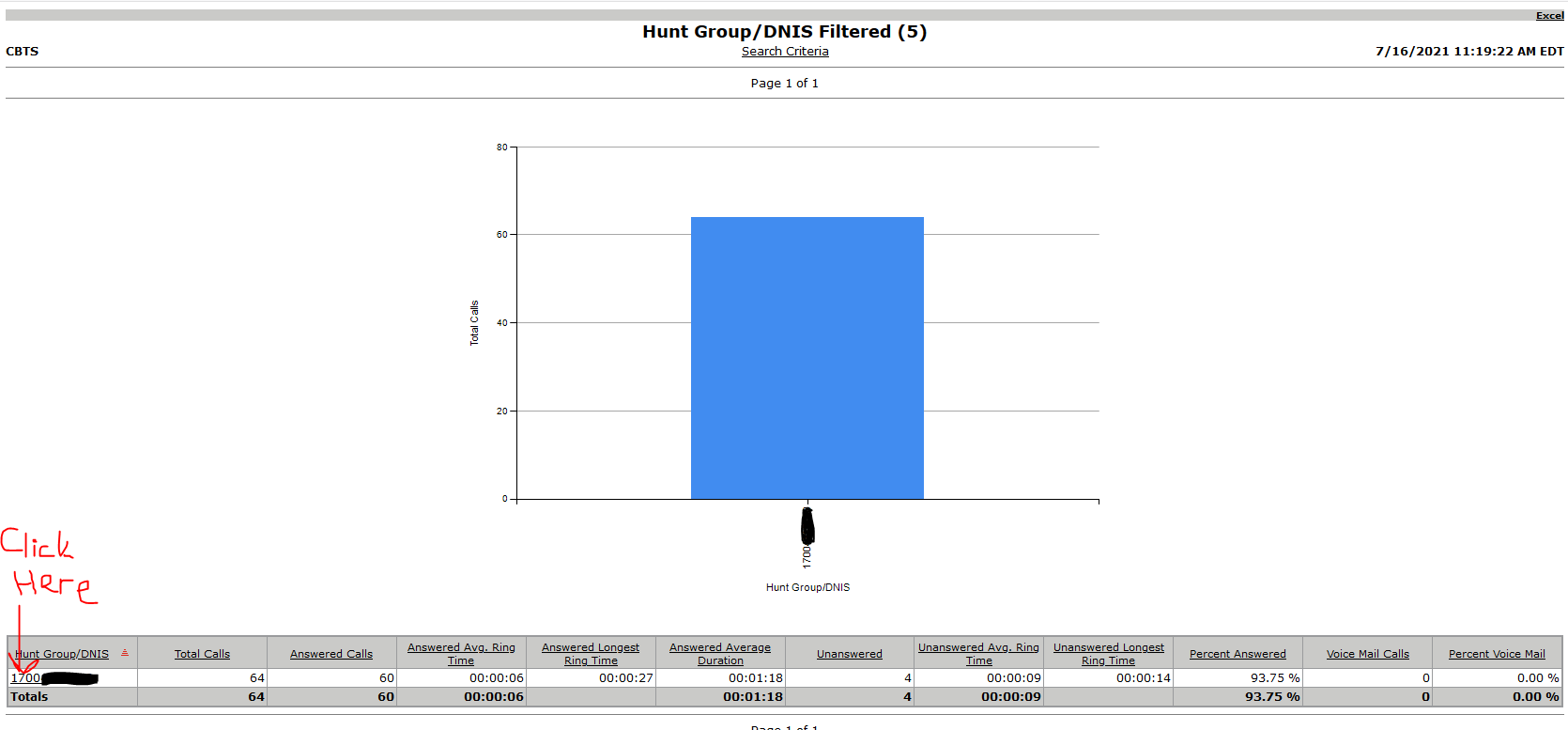
Hunt Group - Determining who answered the call
When you click the link that shows the Hunt Pilot, it will load the actual call records for that Hunt Group. There will be a field labeled "Destination ID". If someone directly answered the call on a physical phone, the Destination ID would be the Host Name of the phone (The MAC address). If they are using Jabber to answer the calls, the Destination ID will show as "csfXXXXXXXXXXX", where X = Phone Number of Jabber user.
Search using a wildcard
In the Extension Used field, enter; Examples %1?????????? or %161455555?? and Run report
NOTE: any cdr search is limited to 3 months of data
- Click on the More Actions arrow and select run against the archive database
- Click Run, this will open a new tab opens in the browser
- To export to Excel, push the excel link at the top right corner and save the file
CAVEAT: Reports unavailable for some VoiceMail purposes for internal calls, which be done in a separate search:
Initial Search may not include all Calls going to voicemail (including any detail available like date, time, length of message, etc…)
% of mailbox used (or full mailboxes)
Oldest call in voicemail
Add the VoiceMail Field to your Search method
Allows the view of calls to voicemail and flags (yes/no) an incoming or internal call that was forwarded to the called party's voice mail.
How to: Go to Reports > Call Search > Call Search
Click on the Layout tab and select and click + or double click on "Voice Mail" and "Unanswered" - recommend to Save for a Schedule Report or simply click Run for a single-use report
See Call Search results and look at the Field "Voice Mail" for Yes and No
Separate VoiceMail Search method for Internal calls only
Allows the view of internal calls to voicemail:
How to: Go to Reports > Call Search > Call Search
Change call direction to "All"
Enter 11 digit Redirect Number (only one number at a time): Ex Internal number 1614495XXXX and Click Run
- - See Call Search results and you have the total calls and the Extension used or Inventory ID is the original caller
- - External calls to voicemail will appear on a regular call search on an Inventory ID
Search using multiple numbers
Separate the number with a semicolon
In the Extension Used field, enter; Examples: %1XXX5555555;1XXX5555555;1XXX5555555;1XXX5555555;1XXX5555555;1XXX5555555;1XXX5555555;1XXX5555555;1XXX5555555 and Run report
Search using multiple numbers
To Learn more: download the PDF at the bottom of the window
Comments
0 comments
Please sign in to leave a comment.